How to Fix PC Stutter, High Latency, and Frame Drops: The Complete Performance Guide
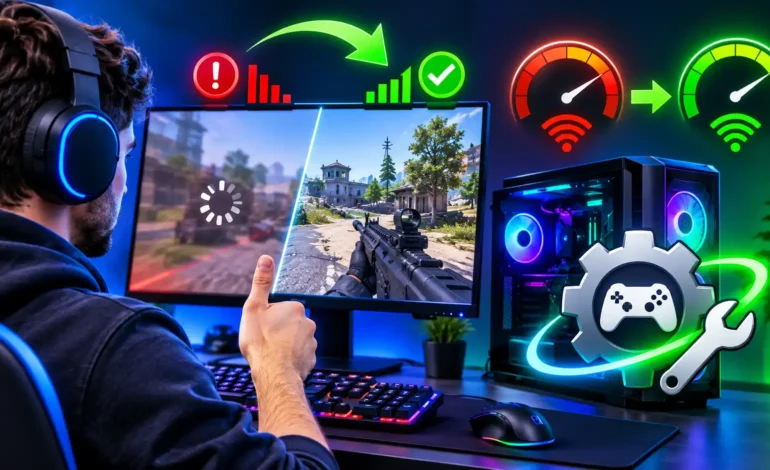
Few things ruin a competitive match faster than a sudden frame drop during a firefight or a latency spike that teleports your character across the screen. Whether playing fast-paced tactical shooters or vast open-world RPGs, gamers constantly fight two distinct performance battles: local hardware limits and unstable internet routing.
Many players assume solving these problems requires spending hundreds of dollars on modern graphics cards or paying for high-tier enterprise fiber lines. However, most micro-stutters and connection delays stem from system misconfigurations, background resource hogging, outdated driver packages, and inefficient ISP data routes.
By applying disciplined system tuning alongside dedicated utility tools such as a reliable Game Booster, you can eliminate system bottlenecks, stabilize frame delivery, and enjoy smooth, uninterrupted gameplay.
1. Dissecting the Two Main Culprits: Hardware Lag vs. Network Latency

To fix game performance, you first need to diagnose where the slowdown occurs. PC lag broadly falls into two categories:
Local Hardware Bottlenecks (Low FPS and Stutter)
When your frame rate drops below your monitor’s refresh rate—or fluctuates wildly between 45 and 90 FPS—your hardware is struggling to process the visual assets. The core causes include:
- Background App Contention: Web browsers, cloud syncing clients, and launchers eating valuable CPU cycles and RAM.
- Thermal Throttling: Dust buildup or poor cooling curves forcing your CPU and GPU to downclock to protect themselves.
- Storage Latency: Games loaded on fragmented or slow drives causing micro-freezes when streaming assets into memory.
Network Latency (High Ping, Packet Loss, and Jitter)
A machine can pump out 165 FPS, yet the match can still feel broken if your ping hovers around 120 ms or experiences frequent packet drops. Network issues usually trace back to:
- Inefficient ISP Routing: Public Internet service providers route traffic through commercial nodes that prioritize bandwidth economy over direct speed.
- Bufferbloat: Home routers becoming overwhelmed when multiple devices stream or upload simultaneously.
- NAT Type Restrictions: Strict firewalls blocking direct peer-to-peer or server connections.
2. Practical Windows System Tweaks for Higher Frame Rates
Before turning to third-party tools, fine-tuning core Windows settings creates a clean baseline for gaming.
Activate Ultimate/High Performance Power Plans
Standard operating system settings favor energy conservation, frequently downclocking hardware components during sudden demand shifts. Navigate to your system power plan settings and switch to High Performance to prevent CPU cores from parking or idling mid-game.
Turn on Game Mode and Hardware-Accelerated GPU Scheduling
Windows includes native features designed to allocate resources dynamically:
- Open Settings > Gaming > Game Mode and ensure it is switched on. This minimizes background Windows Update checks while games run.
- Under Display Settings > Graphics Settings, enable Hardware-Accelerated GPU Scheduling (HAGS). This allows your graphics card to handle its own memory scheduling, reducing input latency on compatible hardware.
Routine Driver and Cache Maintenance
Outdated GPU drivers are responsible for an overwhelming percentage of post-patch crashes and shader compilation stutters. Use clean installation routines whenever upgrading display drivers, and routinely purge temporary shader cache files that accumulate over months of patch cycles.
3. How a Dedicated Utility Optimizes System Hardware
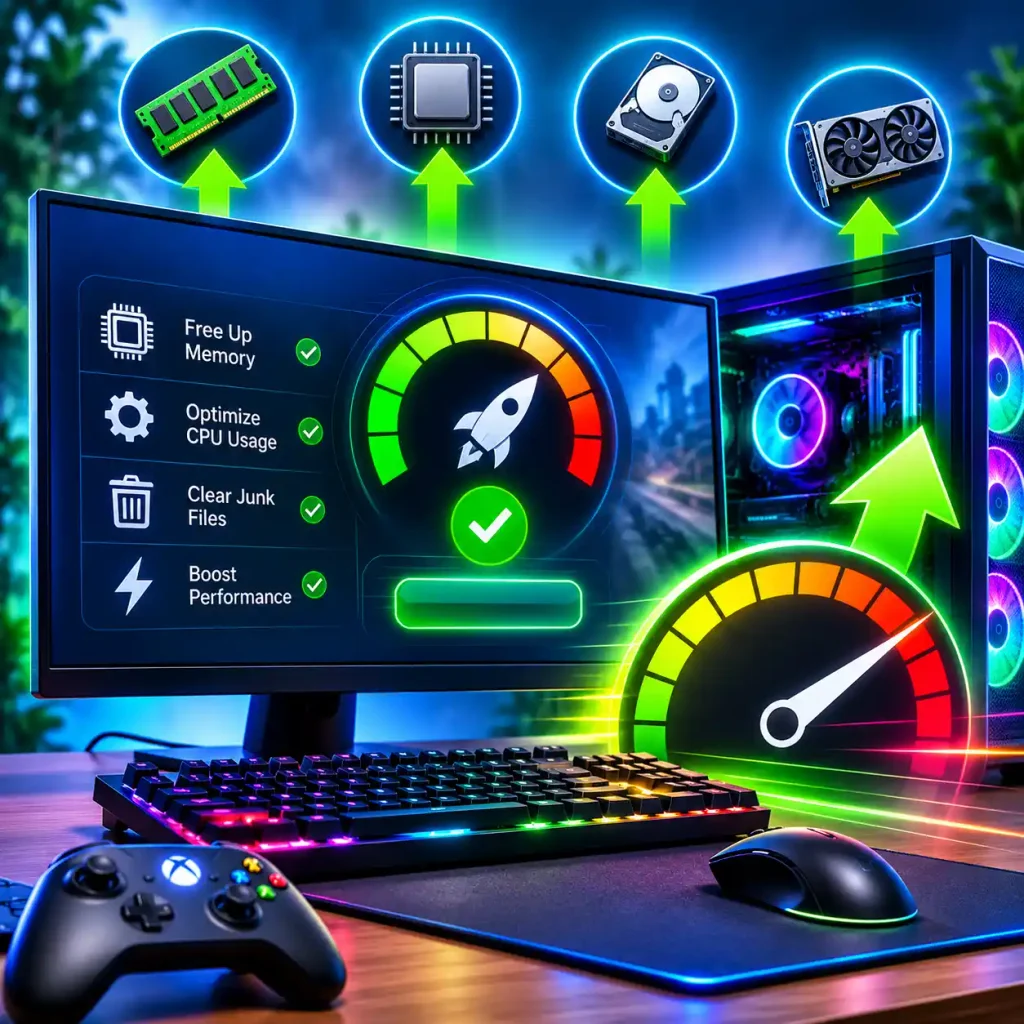
While manual tweaking helps, keeping your rig primed before every gaming session can be tedious. This is where an automated optimization suite proves its value.
Smart Game Booster bridges the gap between manual operating system tweaks and automated performance management. Rather than forcing users to manually kill dozens of non-essential processes, inspect system caches, and tweak individual background services, it condenses this workflow into an intuitive one-click acceleration process.
Freeing Critical Memory and Processing Threads
A modern operating system typically runs 70 to 100 background services simultaneously. Many of these—such as background telemetry, printer spools, and desktop indexers—consume memory blocks and CPU interrupts. The optimization engine suspends unnecessary non-gaming services, reclaims RAM cache, and raises active game thread priorities so your hardware works solely on frame generation.
Safe GPU Acceleration
For gamers wanting extra frames without risky manual BIOS or voltage adjustments, the utility provides safe, factory-tested GPU and VRAM overclocking profiles. By adjusting memory frequencies and core clock speeds within hardware safety limits, you unlock noticeable gains in render stability during heavy combat scenes.
4. Taming Latency: Why Bandwidth Does Not Equal Low Ping
A common misconception among PC gamers is that upgrading home internet speed automatically lowers latency. Speed tiers reflect bandwidth (the volume of data transferred per second), not latency (how quickly a data packet makes a round trip to the match server).
If your game packets bounce through eight inefficient exchange hops across the country, a 1 Gbps fiber plan will still experience high latency and rubber-banding.
Integrating a dedicated Ping Reducer into your setup solves this structural routing issue. Instead of sending your match data down crowded public routing lanes alongside everyday web traffic, network acceleration software reroutes game packets through dedicated gaming servers and private high-speed transit paths.
| Connection Route Type | Path Consistency | Packet Loss Risk | Average Competitive Ping |
| Standard ISP Routing | Unpredictable (hops vary based on general public traffic loads) | Moderate to High during peak evening hours | Elevated; prone to jitter and sudden spikes |
| Optimized Gaming Nodes | Direct, multi-path routing locked to target game server clusters | Minimal (bypasses congested public exchange points) | Low, stable, and resilient against jitter |
By establishing direct routing lines, bypassing restrictive ISP NAT rules, and maintaining alternative failover routes, an intelligent network acceleration tool prevents packet loss and keeps inputs synchronized with the game server.
5. Ongoing Monitoring and Health Checks
Achieving stable performance is not a one-time task; maintaining it requires visibility into system health. Hardware issues like overheating often mimic software bugs.
- Use In-Game HUDs: Keep real-time track of hardware temperatures, RAM consumption, and current FPS. If frame drops occur only after 45 minutes of gameplay, check your GPU and CPU temperatures. Anything exceeding 85°C indicates thermal throttling.
- Check Game Compatibility: Tools like the built-in “Can I Run It” database allow you to assess your system specifications against minimum and recommended benchmarks before purchasing new titles.
apponic - Monitor Background Bloat: Over time, software updates silently re-enable background startup tasks. Regular audits ensure no unwanted programs steal memory while you play.
Reclaiming the Competitive Edge
Winning in competitive online games depends on skill, reflexes, and tactical decisions—not fighting your hardware or struggling against lagging servers.
By pruning unneeded background tasks, keeping drivers updated, optimizing Windows power options, and deploying specialized tools for system acceleration and network routing, you create an optimal environment for your games. Taking a few minutes to clean up system bottlenecks and establish direct server paths ensures that every click, shot, and command registers instantly on the screen.
Read also: Hypackel: Free Browser Games, Features & Guide