How to Improve Your Windows PC Performance and Get a More Responsive Computing Experience
A slow computer can make even simple tasks frustrating. Opening applications, browsing websites, playing games, or switching between programs may take longer than expected. Sometimes, the problem is related to limited hardware resources. In other situations, outdated drivers, unnecessary background applications, and poor system maintenance can affect the overall experience.
Keeping a Windows computer in good condition does not always require expensive hardware upgrades. A few regular maintenance habits can help users improve system responsiveness, avoid common problems, and enjoy a smoother experience.
Whether you use your PC for office work, entertainment, or gaming, understanding how your computer operates can help you make better decisions. Here are some practical ways to maintain your system and improve its everyday performance.
1. Keep Your Device Drivers Updated
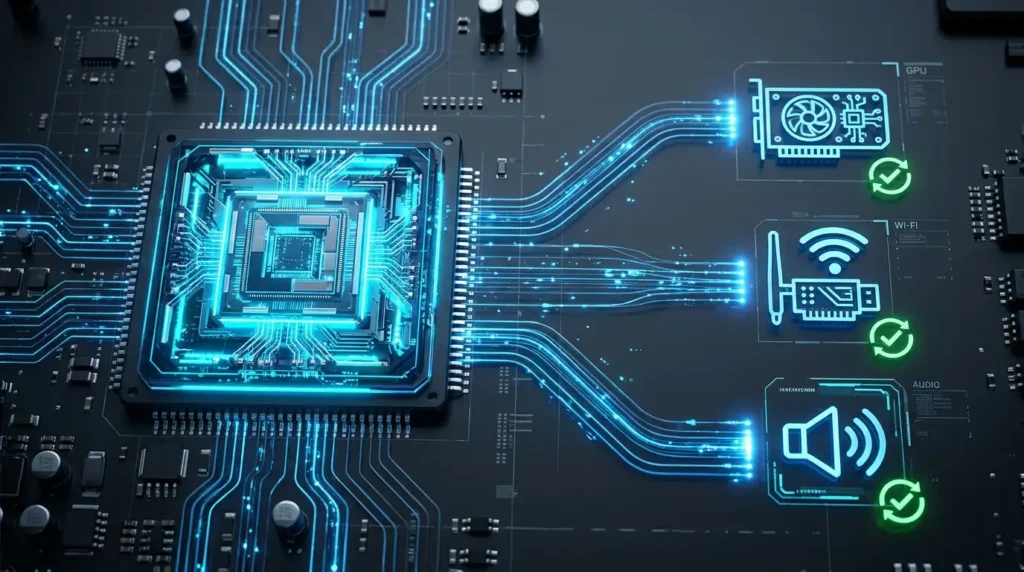
Drivers are an important part of every Windows computer. They allow the operating system to communicate with hardware components such as graphics cards, sound devices, network adapters, keyboards, and printers.
When a driver becomes outdated, damaged, or incompatible with a particular Windows version, the related hardware may not work correctly. For example, users might experience sound problems, unstable internet connections, display errors, or unexpected issues while playing games.
One useful maintenance habit is to regularly update drivers when compatible improvements or necessary fixes are available.
Windows provides built-in options for checking driver updates through Windows Update and Device Manager. Users can also visit their hardware manufacturer’s website to find the correct driver for their particular device.
However, checking several devices individually can take time, especially for people who are not familiar with computer hardware.
This is where Driver Booster from IObit can be useful. It is designed to scan a Windows computer for outdated, missing, or faulty drivers and help users manage available driver updates from one place. This can make routine driver maintenance more convenient.
Before installing any driver, users should make sure it is compatible with their hardware and Windows version. Creating a restore point or keeping a backup is also a sensible precaution.
2. Remove Unnecessary Applications and Background Programs
Many computers gradually collect applications that users no longer need. Some programs are installed for a particular project and then forgotten. Others come bundled with software or start running automatically when Windows launches.
Although one unnecessary application may not create a noticeable difference, several unwanted programs can consume storage space and system resources.
Start by reviewing the applications installed on your computer. Remove programs that you no longer use, but avoid deleting anything unless you understand its purpose.
The Windows Settings application provides a straightforward way to uninstall unwanted software. Open Settings, select Apps, and review the installed applications.
For users who want additional software management options, IObit Uninstaller provides another approach. It is designed to remove unwanted programs, browser extensions, and leftover files associated with uninstalled applications.
Removing unused software can make your computer easier to manage and help reduce unnecessary clutter. It is particularly useful for people who regularly install applications to test different tools.
3. Clean Temporary Files and Manage Storage
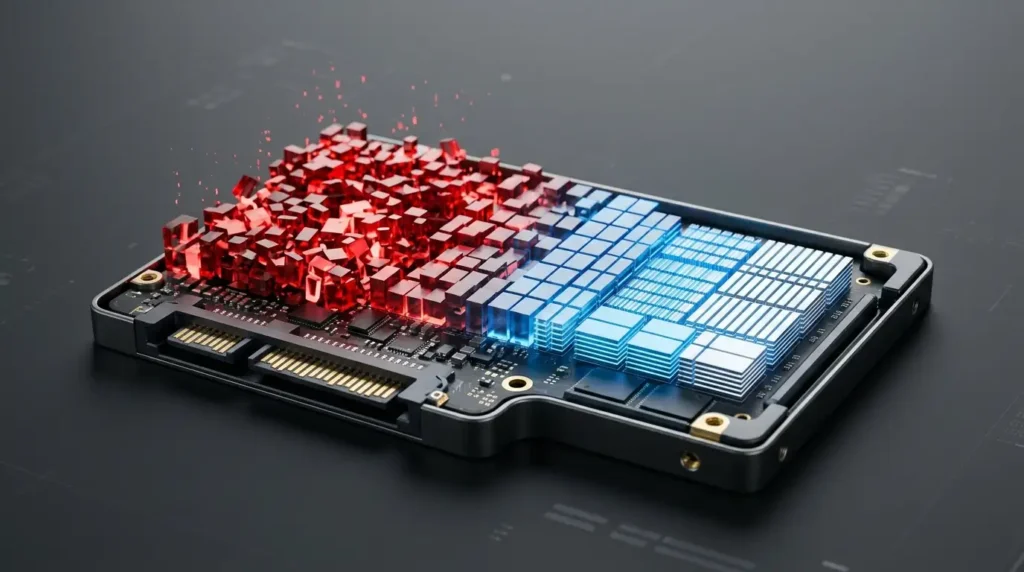
Storage space plays an important role in everyday computer use. When a system drive becomes almost full, Windows may have less room for temporary files, updates, and other system operations.
Temporary files can come from web browsing, application installations, software updates, and regular computer activities. Some are removed automatically, while others may remain on the device.
You can start with Windows Storage settings. The Storage section helps identify which categories are using the most disk space. It also provides options for managing temporary files and enabling Storage Sense.
Another option is Advanced SystemCare from IObit. This utility offers PC cleaning and optimization features designed to help users manage unnecessary files and maintain their systems.
However, cleaning should always be done carefully. Review the available options before removing files, particularly when dealing with downloads, personal documents, or application data.
A clean storage environment makes file management easier and helps users avoid problems caused by running out of available disk space.
4. Check Your Computer’s Startup Applications
Have you ever turned on your computer and waited several minutes before it became ready to use?
One possible reason is that too many applications launch automatically during startup.
Messaging applications, cloud storage services, game launchers, and other programs may start running as soon as Windows loads. Some are necessary for daily activities, but others do not need to run immediately.
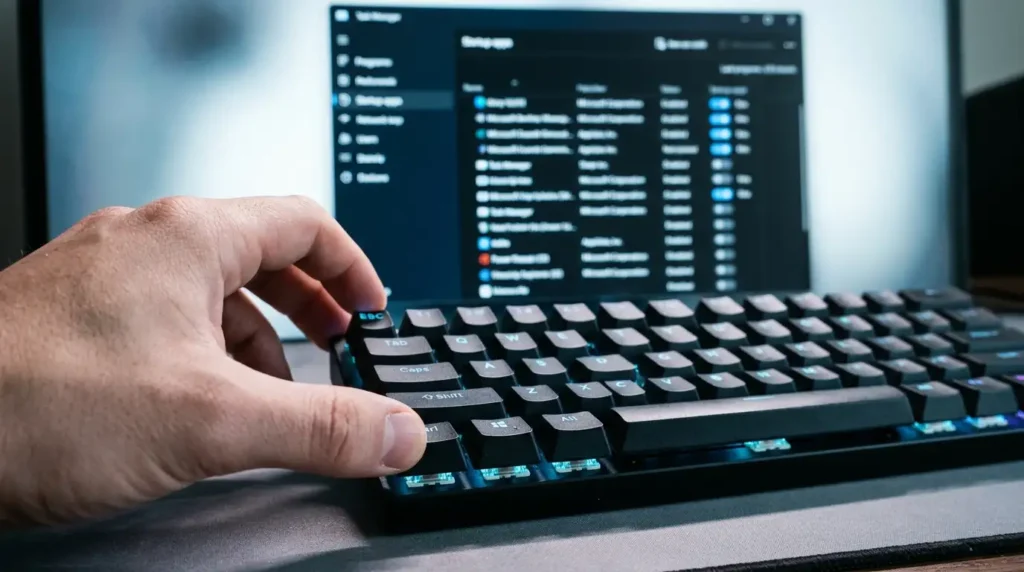
To review these applications, open Task Manager by pressing Ctrl + Shift + Esc. Select the Startup apps section and check which programs are enabled.
Pay attention to applications that have a high startup impact. Disable unnecessary startup programs, but keep essential security software and important system services enabled.
Reducing unnecessary startup activity can make logging into Windows more convenient and prevent unwanted applications from consuming resources in the background.
5. Understand Reaction Speed and Test Your Reflexes
Computer performance is not only about how quickly applications open. Responsiveness also matters when users interact with games, websites, and other digital activities.
For gamers, reaction speed can be particularly important. A quick response may help when avoiding an opponent’s attack, aiming at a moving target, or reacting to an unexpected event.
A reaction time test provides a simple way to measure how quickly someone responds to a visual signal.
Most online tests follow a straightforward process. A screen changes color or displays a signal, and the participant clicks a mouse button as quickly as possible. The result is usually displayed in milliseconds.
For example, if a test records a response of 250 milliseconds, it means the participant responded approximately a quarter of a second after the signal appeared.
However, reaction times can change depending on several factors:
- Sleep: Lack of proper rest can affect concentration and response speed.
- Practice: Repeating similar activities may help users become more familiar with the task.
- Distractions: Background noise and notifications can interrupt attention.
- Device input: Mouse quality, display refresh rate, and system responsiveness can influence the experience.
- Internet connection: Online tests may be affected by browser and network delays.
It is worth remembering that a browser-based test is not a perfect measurement of gaming ability. Different websites, devices, and testing conditions can produce different results.
For a more useful comparison, take several attempts under similar conditions and look at the average rather than focusing on one result.
6. Pay Attention to Graphics and Gaming Performance
Gaming places different demands on a computer compared with ordinary browsing or document editing.
A modern game may require considerable graphics processing power, memory, and storage performance. If the system struggles to meet those requirements, players may experience low frame rates, stuttering, or delayed responses.
Start by checking the recommended hardware requirements of the games you play. Make sure your graphics drivers are compatible with your games and operating system.
You can also adjust in-game graphics settings. Lowering demanding options such as shadows, reflections, and high-resolution textures may help improve frame rates on less powerful computers.
Closing unnecessary background applications is another practical step. It allows the system to focus more resources on the game.
Keep in mind that software optimization cannot replace hardware that does not meet a game’s requirements. If your graphics card or processor is significantly below the recommended specifications, a hardware upgrade may be necessary.
7. Use PC Maintenance Tools Carefully
Maintaining a computer involves several activities, including managing applications, checking drivers, cleaning temporary files, and reviewing system settings.
Doing everything manually is possible, but it may take considerable time. PC maintenance utilities can bring several common tasks together and make them easier to manage.
IObit’s software collection includes different tools for these purposes.
- Advanced SystemCare: Provides PC cleaning, optimization, and maintenance features.
- Driver Booster: Helps identify and manage outdated, missing, or faulty drivers.
- IObit Uninstaller: Helps remove unwanted applications, browser extensions, and software leftovers.
Each product serves a different purpose, so users should choose according to their actual needs instead of installing every available utility.
It is also important to review scan results before applying major changes. Automatic cleaning and optimization features should not replace regular backups, Windows updates, or sensible security practices.
8. Build a Simple PC Maintenance Routine
You do not need to spend hours maintaining your computer every week. A simple routine can help you keep track of important tasks.
Here are some useful habits:
- Weekly: Review available storage and close applications you no longer need.
- Monthly: Check startup programs and remove software that is no longer useful.
- When necessary: Check for compatible driver updates, especially when hardware problems appear.
- Regularly: Install supported Windows updates and restart your computer when required.
- Occasionally: Review system performance and check whether any hardware or software issues need attention.
These small steps can make computer maintenance more manageable. They also help users identify problems before they become more difficult to troubleshoot.
Final Thoughts
A responsive Windows computer depends on several factors working together. Drivers, storage, background applications, startup settings, and hardware capabilities all contribute to the overall experience.
Fortunately, improving everyday PC performance does not always require complicated technical knowledge. Regular maintenance, careful software management, and appropriate driver updates can help prevent many common problems.
Tools such as Driver Booster, Advanced SystemCare, and IObit Uninstaller offer different ways to manage routine maintenance tasks. Meanwhile, testing your reflexes and understanding input responsiveness can give gamers another perspective on their overall computing experience.
The most effective approach is to understand what your computer needs and make changes accordingly. With consistent care and sensible maintenance habits, you can keep your Windows PC organized, reliable, and ready for everyday activities.
Read More: How to Fix PC Stutter, High Latency, and Frame Drops: The Complete Performance Guide